Gemini is the label for Google’s AI offerings. The company has developed a dazzling array of tools and services under it. In combination, they are arguably the best AI has to offer today. Even considered on their individual merits, they are often best in class.
But Google’s Gemini universe is so vast, that it is sometimes hard to get a good grasp of what is possible. Many features are found in the aptly named Gemini app. But there’s a lot outside of it, too.
On this page I give you an overview of Google Gemini’s most important tools and features for content professionals.
At the end, you will understand what you can do with Gemini, where, and how.
This article from July 2025 was last updated in April 2026.
What is Gemini?
Let’s have a quick look at the AI history book to understand where Gemini is coming from: Google’s initial entry into the modern AI chatbot race was launched under the name “Bard” in early 2023. Bard was built on an older architecture and initially struggled to compete with early iterations of OpenAI’s ChatGPT.
In late 2023 and early 2024, Google overhauled the underlying technology, introducing a new family of highly capable multimodal models called “Gemini.” Shortly after, they retired the Bard name entirely, rebranding the consumer-facing chatbot to match the models powering it.
Today, “Gemini” is used to describe two different things:
- The services: The conversational chatbot interface you interact with on the web or via a mobile app, AI-powered features etc.
- The models: The underlying technology that processes text, code, logic, and data (such as the “Gemini 3 Pro” models).
When Google announces that “Gemini is coming to Google Workspace,” they usually mean the models are being integrated into apps like Docs and Gmail as automated assistants, rather than the chatbot interface itself migrating.
In some places like the Gemini app you can choose which exact model to use. Right now, there are three options:
- Fast: You get an almost instant answer, powered by the Gemini “Flash” model. This works well for many everyday tasks and it can also be a good choice if creativity is key, e.g., “Give me five different headlines for this text”.
- Thinking: This also uses the Flash model, but it takes a moment to “think” about how to fulfill your request. This is useful as soon as some reasoning is needed, e.g., “Structure the materials provided into an outline”.
- Pro: In this case, the Gemini “Pro” model is used. This is a separate, more capable Gemini model that always takes its time to “think” about a request before answering. Use it for the most demanding and complex tasks, e.g., “Analyze our content archive”.
Interestingly, “Flash” and “Pro” also have slightly different personalities. In my experience, Flash is more personable and engaging, while Pro is more reserved and matter-of-factly.
Complicating matters a bit further, Google likes to use separate names for its specialized media generation models. While you might ask the Gemini chatbot to generate a video or a song, the text-based Gemini model isn’t actually doing that work. Instead, it acts as a router, handing your prompt off to specialized models behind the scenes:
- Veo: The model family responsible for generating and editing high-quality video.
- Nano Banana: The engines powering Google’s image generation and visual manipulation tools. Imagen is another one, but only offered in places like Google’s AI Studio.
- Lyria: The underlying AI model designed specifically for generating music and complex audio.
I think it would be easier to grasp if these were also called Gemini. But the slightly confusing multitude of names and offerings is a recurring theme with Google’s AI. I’ll try my best to make it make sense.
Where do I find it?
Now that we know what Gemini is, the next logical question is: where exactly does it live? Unlike ChatGPT, which primarily exists as a single website and app, Gemini is distributed across Google’s ecosystem. Generally speaking, there are three main locations:
The standalone app
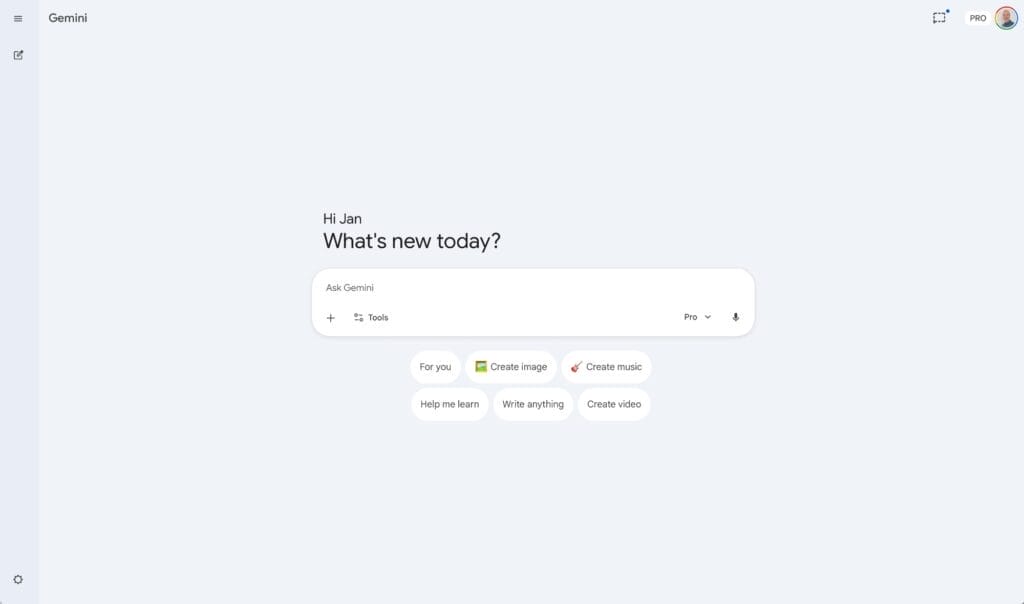
The app is the most direct equivalent to competitors like ChatGPT or Claude. You access it by visiting the dedicated Gemini website or downloading the mobile app for iOS or Android. Here you’ll find a familiar looking conversational interface with a multitude of useful features and tools. For most content professionals, this will serve as the primary hub.
The “invisible” assistant
Google is adding its AI models to the products hundreds of millions of people already use every day. In this context, Gemini acts as an integrated assistant rather than a standalone chat window. You will find it generating “AI Overviews” at the top of Google Search results, or sitting in the sidebar of Google Workspace apps like Docs, Gmail, Drive, and Sheets. In these spaces, it is designed to help you write, summarize, and organize without switching tabs.
Standalone ecosystem tools
Beyond the main app and Workspace integrations, Google has built (and continues to release) specialized standalone applications powered by its AI models. These are distinct platforms tailored for specific, often professional, use cases. Examples include NotebookLM for research synthesis, Google Flow for video generation, and ProducerAI for audio creation. Additionally, existing apps like Google Vids have been enhanced with generative AI features. We will explore these specialized tools below.
I have arranged the following explanations and recommendations by task.
General assistance and writing
For everyday writing tasks, the main Gemini web app (or its mobile counterpart) is where most content creators will spend their time. You can use it to draft blog posts, brainstorm headlines, summarize interview transcripts, or edit existing copy for tone and clarity. Because the underlying Gemini models are multimodal, you can upload a PDF or an image and ask the AI to extract text, summarize data, or write a social media caption based on the visual. I like to use it with audio files: I record myself talking about a topic and Gemini helps me to structure it – no transcription required. Gemini can also access URLs, including YouTube videos.
Gems: Custom AI assistants
If you find yourself pasting the same instructions repeatedly, you are wasting time. Google addresses this with a feature called “Gems.” In case you know ChatGPT: they call it “GPTs”.
Gems allow you to create specialized, customized AI assistants. You give a Gem a name, a persona, source documents, and instructions on how you want it to behave. You can build a Gem that acts as your proofreader, or one trained specifically to turn raw bullet points into newsletter drafts.
One of my most used Gems is an “article assistant” for UPLOAD Magazin: I give it the text and it sends back three headlines, a lead paragraph, a summary in five bullet points, a social media post, and the most interesting quotes. Oh, and it also does some proofreading for me. Because I know the articles very well I can easily determine how fitting its answers are. Most of the time, I only have very little extra work to do.
Other Gems of mine help me to translate articles or to summarize them in a specific way.
Once set up, these Gems live in your sidebar.
Canvas: Work with AI on documents
One of my most used features of the Gemini app is “Canvas”. It’s a view that separates chat and document. This makes it easy to work in unison with the AI on an outline or even a text.
ChatGPT has the same option. It even has the same name. But for some reason, it is very well hidden.
Notebooks: Keep your chats organized
A common frustration with AI chatbots is their limited memory. You do great work in one chat session, but the moment you start a new chat, the AI forgets most of the context of your project. Gemini can reference prior chats and even other information from around your Google account if you want to. But the specifics of a certain project are still lost unless you restate the information every time.
Another frustration is the messy and ever longer list of chats in the sidebar. Soon you will want to use some mechanism to sort your chats by topic or task.
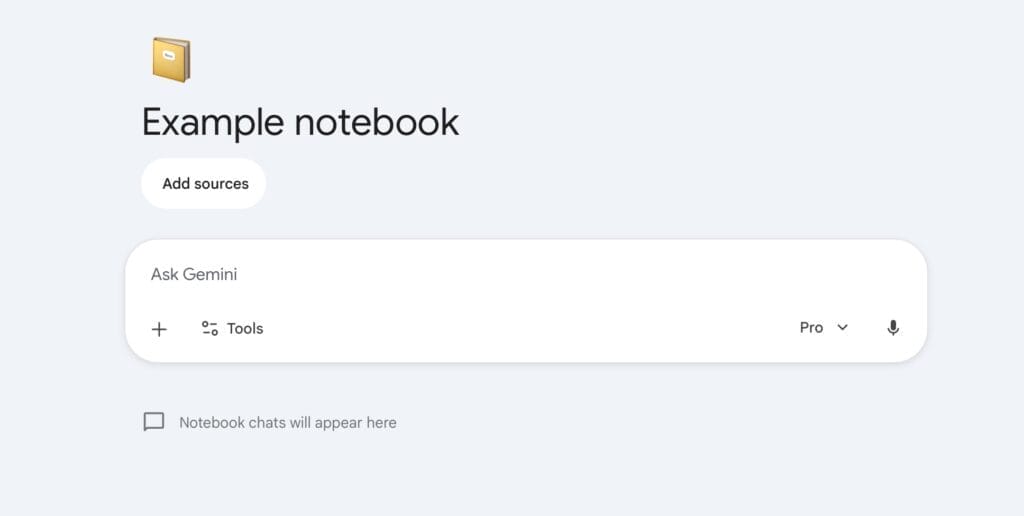
To solve this, Google finally introduced a feature other platforms like ChatGPT and Claude call “Projects”. Here its name is “Notebooks”. They function as dedicated, persistent project workspaces. If you are writing a long ebook or planning a comprehensive marketing campaign, you can create a Notebook and upload all your relevant files, PDFs, and background research into it.
Every time you chat within that specific Notebook, Gemini automatically references your uploaded sources, ensuring it never loses context on a long-term project.
What sets “Notebooks” apart from “Projects” elsewhere: they automatically sync with NotebookLM (Google’s specialized research tool, which we will cover in the next section), bridging the gap between deep research and active writing.
Files: Save and retrieve documents
Unsurprisingly, Gemini is linked in several ways to Google Drive, the company’s cloud storage. That means that you can easily add documents from there. Furthermore, you can quickly save AI answers into Google Drive (use the menu with the three dots under any reply). This is helpful, for example, if you want to reference it later by adding it to another chat, a Gem, or a Notebook.
And, of course, this connection is helpful to save a document you’ve worked on using the Canvas feature: you can keep editing it in Google Docs, share it with others, and download it in numerous file formats.
In addition to Google Drive, you can upload documents from your device as well. Connectors to other cloud services like Dropbox are unfortunately missing. I don’t expect this to be a priority for Google.
Research and learning
Beyond drafting text, Google has positioned Gemini as a tool for research. This makes sense considering Google being the world’s most used search engine. However, these research capabilities are split across several tools.
Let’s have a closer look.
Deep Research (in the Gemini app)
Standard AI chatbots are great at answering simple questions, but they struggle with complex, multi-step queries that require digging through multiple sources. This is where “Deep Research” comes in.
Deep Research is an “agentic” tool inside the main Gemini app. What that means: When you give it a complex prompt (e.g., “Research the history of algorithmic changes in SEO over the last five years and summarize the impact on small businesses”), it creates a research plan, autonomously browses the web, reads through hundreds of pages, synthesizes the information, and compiles a comprehensive, fully-cited report. This process usually takes 5 to 10 minutes, operating in the background. It’s a little bit like having a junior researcher compile a dossier for you.
Deep Search in “AI Mode” (in Google Search)
To make things slightly confusing, Google also offers a feature called “Deep Search”, but this one lives directly in Google Search. Available as an opt-in experiment via “AI Mode,” Deep Search is powered by Google’s top-tier models (like Gemini 3 Pro).
While Deep Research (above) is used in a conversational chat interface, Deep Search is triggered when you type a complex query directly into the Google Search bar. It bypasses standard blue links and, much like its Gemini app counterpart, works across hundreds of websites to build a summary directly on the search results page.
NotebookLM: The content creator’s secret superpower
If Deep Research is for scouring the public web, NotebookLM is ideal for scouring your private data. For many content professionals, this could even be the most valuable tool in Google’s AI lineup.
In a nutshell: NotebookLM is a specialized synthesis tool. You upload your own documents like PDFs, Google Docs, interview transcripts, or even YouTube links and the AI becomes an expert strictly on that material. Importantly, it is “grounded” only in the documents you provide, which reduces the risk of AI “hallucinations.” If you are writing a book and upload all your chapters and research notes, you can ask NotebookLM to find connections, generate timelines, or extract specific quotes without worrying about it pulling in outside, unverified information.
NotebookLM isn’t just for reading: it’s a multimedia engine and can turn your uploaded documents into an “Audio Overview.” This generates a podcast-style conversation between two AI hosts who discuss the key themes of your material. You can even join these audio overviews in “Interactive mode” to ask the hosts questions out loud.
Recently, Google expanded this with “Cinematic Video Overviews.” Available to users of Google AI Pro and above, this feature uses the Veo video model to transform your documents into a mini documentary, complete with animations, visuals, and a narrative structure based on your uploaded research.
Image and video generation
Google has poured a lot of resources into visual AI, but as before: the capabilities are spread across different interfaces. Whether you need a quick blog header or a cinematic video sequence, there is a specific tool for the job.
Inside the Gemini app

For quick, conversational media generation, the main Gemini app is your starting point. You can ask the chatbot to “Generate a photorealistic image of a vintage typewriter on a modern desk,” and it will produce it within seconds.
These images are generated by Google’s “Nano Banana” models. You can also edit these images directly in the chat, asking the AI to change the aspect ratio, swap out the background, or adjust the style using natural language.
In my experience, Nano Banana does an excellent job with a wide variety of images you might need for your everyday content and marketing work. I personally prefer it to ChatGPT’s image generator.
Similarly, you can generate short, simple videos directly in the Gemini chat interface. This is powered by the “Veo” video model and could be useful for quick B-roll, conceptual mockups, or simple social media posts. Just keep in mind that you need an AI Ultra account if you want to use the more capable model and generate more than just a few clips.
But from my point of view, AI videos are only useful if you are already working with video a lot. The results are not usable on their own most of the time. This is in contrast to AI image generation.
Google Vids: AI video creation for work
If the Gemini app is for quick clips and Flow (which we will look at next) is for cinematic filmmaking, Google Vids is built for everyday work communication. Think of it as a mix between Google Slides and a video editor, sitting right alongside Docs and Sheets in Google Workspace.
Google Vids is meant to help you create informational videos like sales pitches, team onboarding materials, tutorials, or project updates without needing professional video editing skills. Because it is part of Workspace, you can tell the AI to “create a recap video based on this project document.” Gemini will pull the information from your Google Drive, generate a script, create a scene-by-scene storyboard, and apply templates.
It also features tools to save you from having to step in front of the camera or a microphone. You can choose from preset AI voiceovers or insert AI avatars to read your script. Google has also integrated its Veo 3 model into Vids, meaning you can generate AI video clips directly within your project to use as custom B-roll.

Google Flow: Cinematic AI filmmaking
If you are creating high-end video content, the chat interface or Google Vids won’t be enough. For that, Google offers Flow, something like a standalone AI creative studio.
It’s designed for cinematic, high-quality video generation. Aside from standard Text-to-Video generation, Flow features advanced modes like “Ingredients-to-Video,” where you can upload reference images, storyboards, and stylistic prompts to direct the AI’s output. For YouTubers, video marketers, or course creators, Flow can act as an on-demand “B-roll engine”.
Flow is one of Google’s many experimental AI offerings. It is part of Google Labs and that means: It’s not yet ready for everyday production tasks. Its feature set can change.
Whisk & Google Photos: Visual remixing and social assets
Sometimes you don’t want to write a complex prompt from scratch, but you want to combine existing ideas visually. That is the premise behind Whisk.
Whisk is a standalone image-to-image generator built for visual ideation. Instead of typing out descriptions, you select images for the subject, scene, and style, and the AI “whisks” them together. It is a tool for generating blog assets or newsletter visuals. Plus, with the “Whisk Animate” feature, you can turn these generated images into short, looping videos.
Just like Google Flow, it is an experimental offering.
Additionally, don’t overlook Google Photos. While normally considered a consumer app, Google has added generative AI features to it that can be useful for content creators needing quick social media assets. Features like “Photo to video” add subtle animation to still images, while “Remix” can stylize your photos into 3D animations or sketches.
Features integrated into YouTube
Furthermore, Google keeps adding AI features to YouTube. In fact, it’s already so many different features and Google’s pace is so quick that it doesn’t make sense to even try to list them all here. Just be aware that YouTube is another place where you can find Google’s AI features to create videos, images, and music.
Music and audio
Generating audio with AI has matured over the last year, and Google has integrated these capabilities into both its main interfaces and its specialized tools.
Music generation in Gemini

Until recently, generating music required using third-party platforms. Now, Google has integrated its audio model, Lyria 3, directly into the main Gemini chat interface.
You can prompt the AI with text, an image, or even a video clip to generate custom music tracks ranging from 30 seconds to three minutes in length. This offers a practical way to create background tracks for social media videos or podcast intros without worrying about sourcing royalty-free music.
ProducerAI: The professional audio suite
If your content workflow relies heavily on audio, the basic chat interface might feel limiting. For dedicated audio and music generation, Google offers ProducerAI. This is a standalone platform built specifically for creating, editing, and refining music and audio tracks with generative AI. Interestingly, Google is not mentioned once on ProducerAI’s homepage.
A major factor for content professionals considering ProducerAI is its licensing structure. If you have a Google AI Pro subscription, you automatically receive the benefits of ProducerAI’s Plus plan. This allocates 10,000 monthly credits to your account (enough to generate roughly 2,000 songs) and allows for 12 concurrent generations. Most importantly, it grants you commercial use rights. This makes ProducerAI a viable tool for creating original music for client videos, monetized podcasts, or paid ad campaigns.
Audio Overviews in NotebookLM
While NotebookLM is primarily a research tool (covered in Section 4), it is worth mentioning again here for its audio capabilities.
With a single click, NotebookLM transforms uploaded text documents into an “Audio Overview”: a pretty natural sounding, two-person podcast conversation discussing the key themes of your material. It provides an efficient way to turn written reports, blog posts, or research notes into consumable audio content for yourself or your audience.
And there’s even more …
There are even more tools and services I can only list in brief for now:
- Google Mixboard: Google describes it as “an AI-powered concepting board that helps you explore, expand, and refine your ideas.”
- Google Pomelli: “Easily generate on-brand content for your business.”
- Gemini in Chrome: “AI assistance, right in your browser.”
- Project Mariner: “Exploring the future of human-agent interaction, starting with browsers.”
- Google AI Studio: A place to experiment and build with all of Google’s AI models.
- Project Genie: “Interactive worlds. Generated in real-time.”
- Google Opal: “Build, edit, and share AI mini-apps using natural language.”
Pricing plans: Which one is best?
With tools spread across the ecosystem, figuring out what you actually have to pay for can be confusing. Google has consolidated its AI subscriptions under the “Google One” umbrella. Currently, there is a free tier in addition to three paid plans.
The Free tier
Anyone with a Google account gets basic access to the Gemini app, standard AI Overviews in Search, and a baseline of 100 monthly “AI credits.” These credits are the currency Google uses for media generation, like creating images or short videos. If you are just using Gemini to brainstorm headlines or summarize the occasional PDF, the free tier might be enough. However, you will hit usage limits if you rely heavily on Deep Research or generate a lot of media.
Google AI Plus
Priced at $4.99 a month, the “Plus” plan is the entry-level paid tier. It doubles your AI credits to 200 per month, upgrades your cloud storage to 400 GB, and grants higher daily limits for the smarter Gemini 3 Pro model, Deep Research, and Nano Banana Pro for image generation. It is a practical middle ground if you use AI frequently but don’t need heavy video capabilities or Workspace integrations. You can also share this plan with up to five family members.
Google AI Pro
At $19.99 a month, the Pro plan is the most relevant option for content professionals. Upgrading to Pro unlocks Gemini directly inside your Google Workspace apps (Docs, Gmail, Sheets, Vids) so you can use AI without switching tabs. It also provides 1,000 monthly AI credits to use across visual tools like Flow and Whisk.
A major differentiator for the Pro plan is its bundled benefits. It includes 5 TB of Google Drive storage (recently upgraded from 2 TB). It also includes the ProducerAI Plus plan, which grants 10,000 separate audio credits and commercial use rights for generated music. Additionally, it comes with a Google Home Premium subscription.
Google AI Ultra
Priced at $249.99 a month, the Ultra tier is not intended for the average writer or marketer. It is designed for high-intensity power users and developers. It comes with 30 TB of storage, 25,000 monthly AI credits (aimed primarily at heavy cinematic video generation in Flow), and access to autonomous agent workflows. Most content professionals will not need this tier.
Recommendations for starters and outlook
With so many tools spread across different platforms, it is easy to get overwhelmed. If you are just starting to integrate Google’s AI into your content workflow, the best approach is to ignore the highly specialized tools at first.
The beginner tech stack
I recommend starting with just two tools: the main Gemini app and NotebookLM.
Begin by using the Gemini app as a daily sounding board. Try outlining an article, summarizing a long email thread, or brainstorming headlines. Once you find a prompt you use repeatedly, turn it into a “Gem.”
After you are comfortable with the chat interface, try NotebookLM. Upload a few PDFs or research notes for your next project and ask the AI to find connections. Generating an Audio Overview from your own notes is also an excellent way to experience the value of these tools.
You can safely ignore video generation in Flow, visual remixing in Whisk, and advanced music creation until your foundational writing and research workflows are established. But feel free to explore, of course. Google has been very active expanding and improving its AI offerings. There’s almost always something new to try out.
The future of the ecosystem
Looking ahead, Google’s strategy seems clear: deep integration. Google keeps embedding AI into offerings like Drive and Workspace that many professionals might already use. At the same time, these helpful connections could motivate you to make better use of these tools. That’s at least what happened for me.
We are seeing this strategy with features like Gemini pulling documents from Google Drive to generate scripts in Google Vids, or Gemini Notebooks syncing with NotebookLM. Understanding how these tools connect now will give you an advantage as this ecosystem becomes even more intertwined.
What’s next?
This overview is meant as a starting point. Because there is so much to cover, I am currently working on a comprehensive ebook and a dedicated course to show you exactly how to implement these tools step-by-step into your content production process.
If you want to be notified when these resources launch, make sure to subscribe to the Smart Content Report newsletter! With it you get the best articles right in your inbox every other Friday.
Stay up to date
AI for content creation: the latest tools, tips and trends. Every two weeks in your inbox:

